

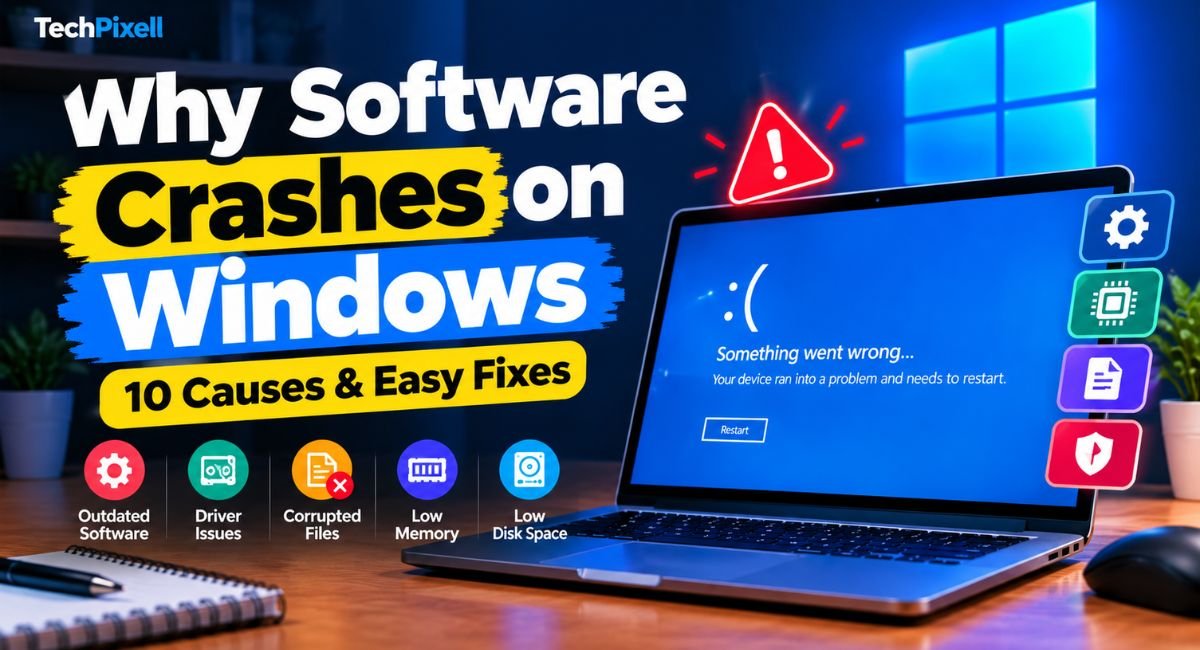
A software crash happens when a program stops working and cannot recover. On Windows, that usually looks like one of four things: the app closes without warning, freezes, stops responding, or shows an error message. The cause can be the software itself, a device driver, Windows, limited system resources, or corrupted files. Conflicts with other programs, malware, and faulty hardware can also be behind it.
Quick answer: most software crashes on Windows trace back to outdated software or drivers, damaged files, low memory or disk space, or a clash with another program. Updating, repairing the app, running System File Checker, and reading Event Viewer solve or explain many of them. This guide covers each cause, then the fixes in a sensible order.
Why Software Crashes on Windows
These are the most common causes. Your crash may involve more than one.
Outdated Software or Windows
Old app versions can contain bugs that later releases fixed. They may also stop working properly once Windows changes underneath them. Windows has the same problem in reverse: a newer app can rely on components that an out-of-date Windows build does not include.
Support status matters here too. Microsoft ended support for Windows 10 on October 14, 2025, so it no longer provides free updates through Windows Update, technical assistance, or security fixes for it. A Windows 10 PC still runs, but it no longer receives those fixes. microsoft
Outdated or Faulty Drivers
Drivers let Windows communicate with hardware. Graphics drivers are a frequent suspect because games, video editors, design tools, and even browsers with hardware acceleration depend on the GPU. An old or buggy graphics driver can crash apps that draw heavily on it.
Driver conflicts are another cause. Two drivers may compete for the same device, or a fresh driver update may not get along with software you already had.
Corrupted or Missing Files
Three kinds of file problems cause crashes:
- Corrupted installation files: an interrupted install or update can leave an app half-installed.
- Missing application files: a cleanup tool or an antivirus quarantine can remove a file the app needs.
- Corrupted system files: a failed update, disk error, or sudden power loss can damage Windows files that many apps depend on.
Insufficient RAM or System Resources
When RAM fills up, Windows moves data to disk, which is much slower. Apps then lag, freeze, or fail when they cannot get the memory they ask for. High CPU usage from other tasks has a similar effect. Some programs also have memory leaks, meaning they keep claiming memory without giving it back. Faulty RAM or overheating can also destabilize software, though these are less common.
Low Disk Space
Windows uses free space on the system drive for temporary files, updates, and virtual memory. Apps also write temporary and save files there. When the drive is nearly full, these operations can fail. No single free-space figure suits every PC, so leave a healthy margin. You can review usage under Settings > System > Storage.
Software Conflicts and Background Processes
Programs can interfere with each other. Common examples include antivirus tools scanning or blocking an app, overlay and screen-recording utilities, VPN clients, and old plug-ins. Background processes can also use up the CPU, memory, or disk that your app needs. A clean boot, which starts Windows with only essential services and startup items, helps you test whether a background program is responsible.
Windows Compatibility Issues
Older software was written for earlier versions of Windows and may depend on behavior that has since changed. Right-click the app’s .exe file, open Properties > Compatibility, and try the compatibility troubleshooter or an older Windows mode. Also check whether the developer offers a newer version.
Malware or Security Problems
Malware can delete or alter files, drain resources, or interfere with running programs. A crash alone does not prove an infection, but a scan is a reasonable step if crashes are frequent or strange. Run a full scan with Windows Security (Microsoft Defender) or another trusted antivirus tool.
How to Fix Software Crashes on Windows
Work through these from the least to the most disruptive.
Restart the Software and Windows
If the problem is limited to one app, clearing its app cache can also help with minor crashes and freezing. If the app is frozen, press Ctrl + Shift + Esc to open Task Manager, select the app, and choose End task. Then restart Windows using Restart, not Shut down. With Fast Startup enabled, a shutdown does not fully reset the system, while a restart does.
Update Windows and the Software
Open Settings > Windows Update and select Check for updates. Then update the crashing app through its built-in updater, the Microsoft Store, or the developer’s official website. Restart afterward.
Update or Reinstall Drivers
Start with the graphics driver. Download it from the GPU maker (NVIDIA, AMD, or Intel) or your PC manufacturer. For other devices, open Device Manager, right-click the device, and choose Update driver. If crashes began right after a driver update, open the device’s Properties > Driver tab and use Roll Back Driver if it is available. You can also uninstall the device and restart so Windows reinstalls the driver.Gaming peripherals can also experience software or connection-related problems; for example, see this guide to Connectivity HSSGamepad.
Check RAM, CPU, and Disk Usage
Open Task Manager and look at the Processes and Performance tabs. Sort by memory, CPU, and disk to find programs that use unusually high amounts. Close or update those programs, and trim the Startup apps list. If memory stays near full even with few programs open, you may need more RAM. To test for faulty memory, run Windows Memory Diagnostic (search for it in the Start menu).
Repair or Reinstall the Application
Go to Settings > Apps > Installed apps, open the menu beside the app, and choose Advanced options. Microsoft’s guidance is to try Repair first and use Reset if the problem continues, and it notes that not every desktop app offers these options. Repair tries to fix app files without touching your data, while Reset removes the app’s data. If neither works, uninstall the app, restart, and install the latest version from the developer’s official site. Save any license keys and back up app data first. See Microsoft’s page on fixing problems with installing or removing programs. microsoftmicrocenter
Run System File Checker
System File Checker (SFC) scans protected Windows files and replaces damaged ones. Open Command Prompt as administrator and run these commands in order:
DISM.exe /Online /Cleanup-image /Restorehealth
sfc /scannow
Microsoft recommends running DISM before SFC, because DISM supplies the files needed for the repair. Keep the window open until the scan reaches 100%, then restart. The full steps are in Microsoft’s System File Checker guide. microsoft
Check Windows Event Viewer
Right-click the Start button, open Event Viewer, and go to Windows Logs > Application. Look for Error entries around the time of the crash. An Application Error entry with Event ID 1000 means a program stopped unexpectedly, and it names the program and the module involved. Event ID 1002 usually marks an application hang. eventtracker
Note the faulting application name, the faulting module name, and the exception code. If the module is a driver file, updating that driver is a logical next step. If the same module appears in every crash, searching its name together with the app name can point you to a fix.
Why Does Software Crash When Opening?
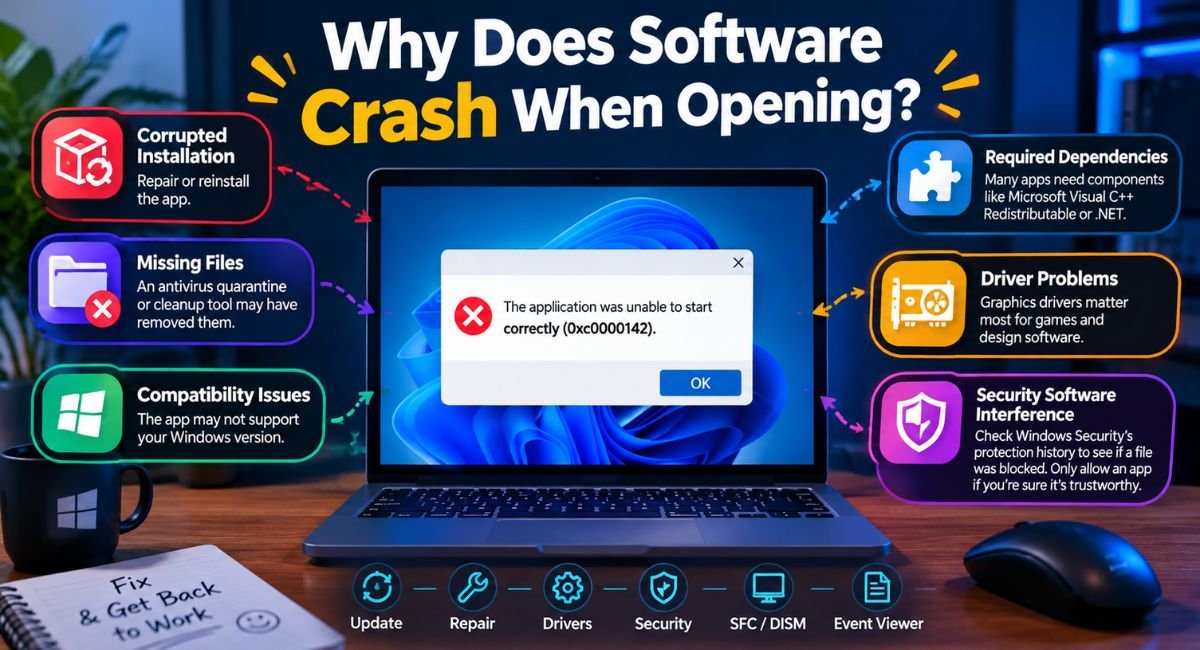
A crash on launch usually means something the app needs at startup is missing or broken. Common causes:
- Corrupted installation: repair or reinstall the app.
- Missing files: an antivirus quarantine or cleanup tool may have removed them.
- Compatibility issues: the app may not support your Windows version.
- Required dependencies: many apps need components such as the Microsoft Visual C++ Redistributable or .NET. The error message often names the missing file.
- Driver problems: graphics drivers matter most for games and design software.
- Security software interference: check the protection history in Windows Security to see whether a file was blocked. Only allow an app through if you are sure it is trustworthy.
Why Do Programs Keep Crashing on Windows?
A single crash can be a one-off glitch. Repeated crashes usually mean the underlying cause is still there. The pattern helps narrow it down:
| Pattern | Likely cause | Check first |
|---|---|---|
| One app, crashes at launch | Damaged install, missing dependency, compatibility | Repair or reinstall the app |
| One app, only during heavy tasks | GPU driver, memory limits | Update graphics driver, check Task Manager |
| Many apps, random timing | Drivers, system files, low RAM, disk problems | Run DISM and SFC, check resources |
| Started after an update | Driver or app incompatibility | Check update history, roll back the driver |
Outdated software, drivers, corrupted files, resource limits, and software conflicts cover most cases.
How to Find Out Why a Program Crashed on Windows
- Read the error message. Write down the text or code, or take a screenshot. It may name a file or component.
- Review Event Viewer. Check Windows Logs > Application for the faulting application and module. Reliability Monitor (search “reliability history” in Start) also shows a timeline of app failures.
- Check Task Manager. Watch memory, CPU, and disk while you reproduce the crash.
- Compare apps. Does one program crash or several? Several points toward Windows, drivers, or hardware.
- Look at recent changes. Open Settings > Windows Update > Update history and see whether the crashes began after a Windows or driver update.
When Should You Reinstall Windows?
Consider it only after the simpler fixes fail and the crashes affect many programs or Windows itself.
| Situation | Likely scope | Better next step |
|---|---|---|
| One app crashes | App-level | Repair, reinstall, or update that app |
| Several apps crash, DISM and SFC found no fix | System-wide | Consider resetting Windows |
| Crashes continue after a clean reset | Possibly hardware | Test RAM and storage |
Back up your files first. Microsoft warns that resetting a PC reinstalls Windows and, depending on the option, can remove apps, settings, and personal files, and it advises having your BitLocker recovery key ready if the device is encrypted. The “Keep my files” option keeps your personal files but removes apps and settings, while “Remove everything” deletes all three. Details are on Microsoft’s Reset your PC page.
Frequently Asked Questions
Why does software suddenly crash on Windows?
A sudden crash usually follows a change or a resource limit: a new update, a driver problem, a full drive, low memory, or a damaged file. Check Event Viewer for the faulting module and review your recent updates.
Why do programs keep crashing on Windows 11?
Windows 11 crashes have the same general causes as earlier versions: outdated apps or drivers, corrupted files, limited resources, and conflicts. Check update history for recent changes, update your graphics driver, and run DISM and SFC.
Why does an app crash when I open it?
The install may be damaged, files may be missing, or a required component such as .NET or a Visual C++ package may be absent. Compatibility problems, drivers, and security software can also stop an app from starting. Repair or reinstall it first.
Can outdated drivers cause software crashes?
Yes. Graphics drivers are the most common example, especially for games and video or design software. Updating the driver, or rolling back a recent one that caused problems, often helps.
Can low RAM make programs crash?
Yes. When memory runs short, apps can freeze, slow down, or close. Check memory use in Task Manager, close heavy programs, and consider adding RAM if the shortage is constant.
Can Windows updates cause application crashes?
Sometimes. An update can clash with a driver or an older app. If crashes began right after one, check update history, look for driver changes, and see whether the app’s developer has posted a fix.
How do I stop programs from crashing on Windows?
Keep Windows, apps, and drivers updated. Leave free disk space, watch resource usage, repair damaged apps, and run DISM and SFC if system files may be damaged. Use Event Viewer when crashes repeat.
Key Takeaway
Most software crashes on Windows come from outdated software, faulty drivers, corrupted files, tight system resources, compatibility gaps, or conflicts between programs. Start with updates, then check drivers, resource use, and the app’s install. Run DISM and SFC for system files, and use Event Viewer when crashes repeat, because it names the failing program and module. Reinstall Windows only when the problem is system-wide and simpler fixes have not worked.
You May Also Like It:
Droven.io Review 2026: Features, AI Tools & Complete Guide
New Software Aliensync Apps Explained: Everything You Need to Know In (2026)
Endbugflow Software: Features, How It Works, Safety & Review (2026)
What Is Mogothrow77 Software Informer? Complete Guide, Safety, Features & Download Explained
